
🎄 Festive Rush - Deliveries might take a bit longer. We appreciate your patience.
Festive Period 2025
Cut-Off Times


Understanding how to set up WooCommerce shipping is required for Australian store owners managing delivery across multiple regions and product types. According to Australia Post’s 2024 report, online purchases in Australia reached 9.5 billion in 2023, highlighting the scale of ecommerce activity.
This guide explains how to configure Shipping Zones, Shipping Methods, and Shipping Classes in WooCommerce. By the end, you will be able to assign shipping rates to specific locations and resolve configuration issues that prevent rates from displaying at checkout.
Install the Couriers & Freight WooCommerce plugin to display real-time carrier rates at checkout and book shipments directly from your dashboard.
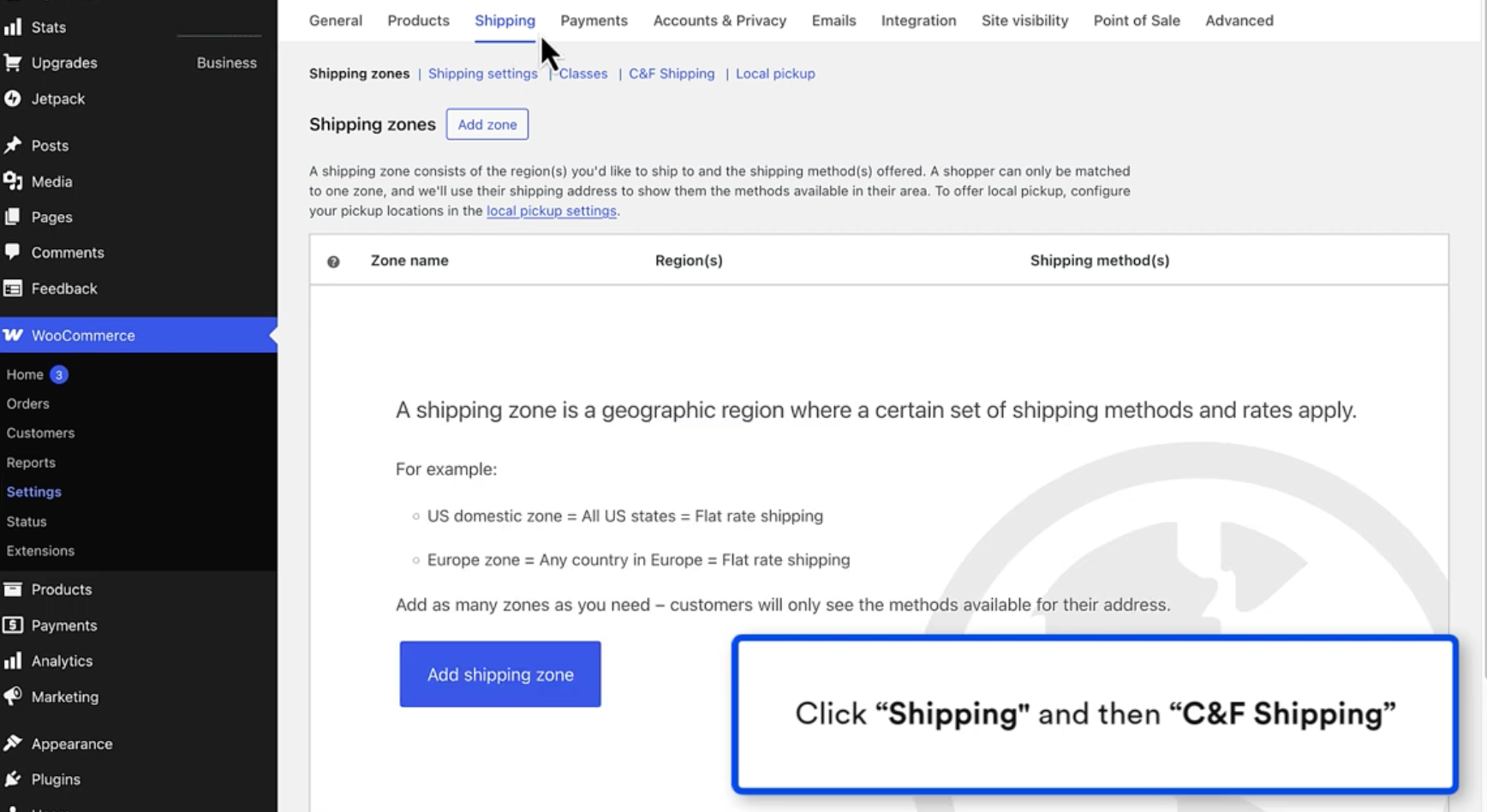
Get a Quote Now1. Go to WooCommerce > Settings > Shipping > Shipping Zones, click Add shipping zone, enter a zone name, select Australia, and define regions using states or postcode ranges.
2. Inside the zone, click Add shipping method, select Flat Rate, Free Shipping, or Local Pickup, then configure the method settings and save changes.
3. Go to WooCommerce > Settings > Shipping > Shipping Classes, click Add shipping class, create classes such as Oversized or Fragile, and assign them via Products > Product data > Shipping.
4. Return to WooCommerce > Settings > Shipping > Shipping Zones, edit the Flat Rate method, and enter class-specific costs in the Shipping class costs fields.
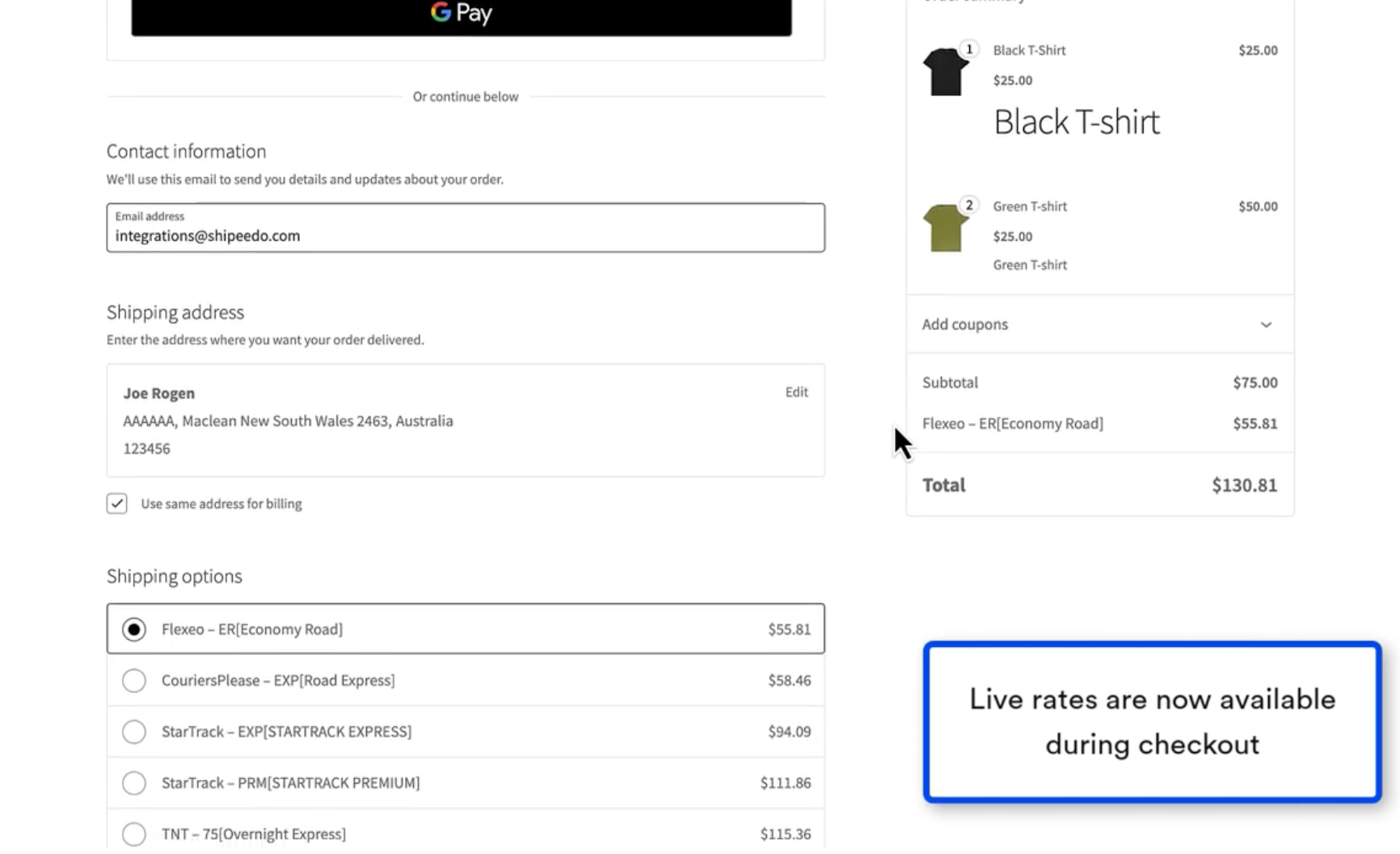
5. Install Couriers & Freight’s WooCommerce plugin to display live carrier rates at checkout and connect your store to multiple carriers.
WooCommerce shipping is built from three components that must be configured in a specific sequence before rates will display correctly at checkout.

Navigate to WooCommerce > Settings > Shipping > Shipping Zones and click Add shipping zone in the top right corner.
WooCommerce matches customers to zones from top to bottom based on specificity. Place narrower zones above broader ones. If Australia appears above Metro Sydney, customers in Sydney will match the broader zone first.
WooCommerce supports country and state-level zones, but postcode ranges are required to separate metro and regional areas within the same state.
Example: Create a Metro Sydney zone using postcode ranges 2000–2234, and a Regional NSW zone using 2350–2999 to differentiate delivery pricing.
If no zone matches, no shipping methods appear. Keep the fallback zone “Locations not covered by your other zones” active and assign at least one method.
Within each Shipping Zone, click Add shipping method to attach a rate type to that zone.
Flat Rate: Use Flat Rate when you charge a fixed amount per order or per item, regardless of carrier or service level. It suits stores with predictable parcel dimensions and consistent freight costs within a given region.
Free Shipping: Use Free Shipping when you want to offer no-cost delivery once a customer meets a specific condition. This suits stores using free shipping as a conversion incentive above a minimum order value.
Local Pickup: Use Local Pickup when you have a physical location and want to offer customers the option to collect their order in person. This method does not calculate a shipping cost and works best as a secondary option alongside another method.
Shipping Classes apply when products require different rates within the same zone.
Example: A store selling standard parcels and oversized freight items, such as shelving or fencing materials, requires separate cost structures.
Step 1: Create the class
Step 2: Assign the class to a product
Step 3: Set class-specific costs inside the Flat Rate method
If a product has no class, WooCommerce applies the “No shipping class” cost. In mixed carts, WooCommerce calculates rates based on the selected calculation type. Test combinations of products before publishing rates.
If no shipping methods display at checkout, the most common cause is zone ordering. WooCommerce matches customers to zones from top to bottom. If a broad zone, such as "Australia", is above a narrower zone like "Metro Sydney," customers in Sydney match the broader zone first and see its methods instead.
Reorder zones so the most specific appear at the top. A second cause is an unassigned zone: if a customer's address matches no zone, WooCommerce displays no methods at all. Keep the "Locations not covered by your other zones" fallback zone active.
After configuring WooCommerce shipping, the platform can display fixed rates and free shipping conditions, but it does not calculate live carrier rates based on shipment details. Stores that ship across multiple regions or handle variable freight costs require a method to retrieve carrier pricing dynamically.
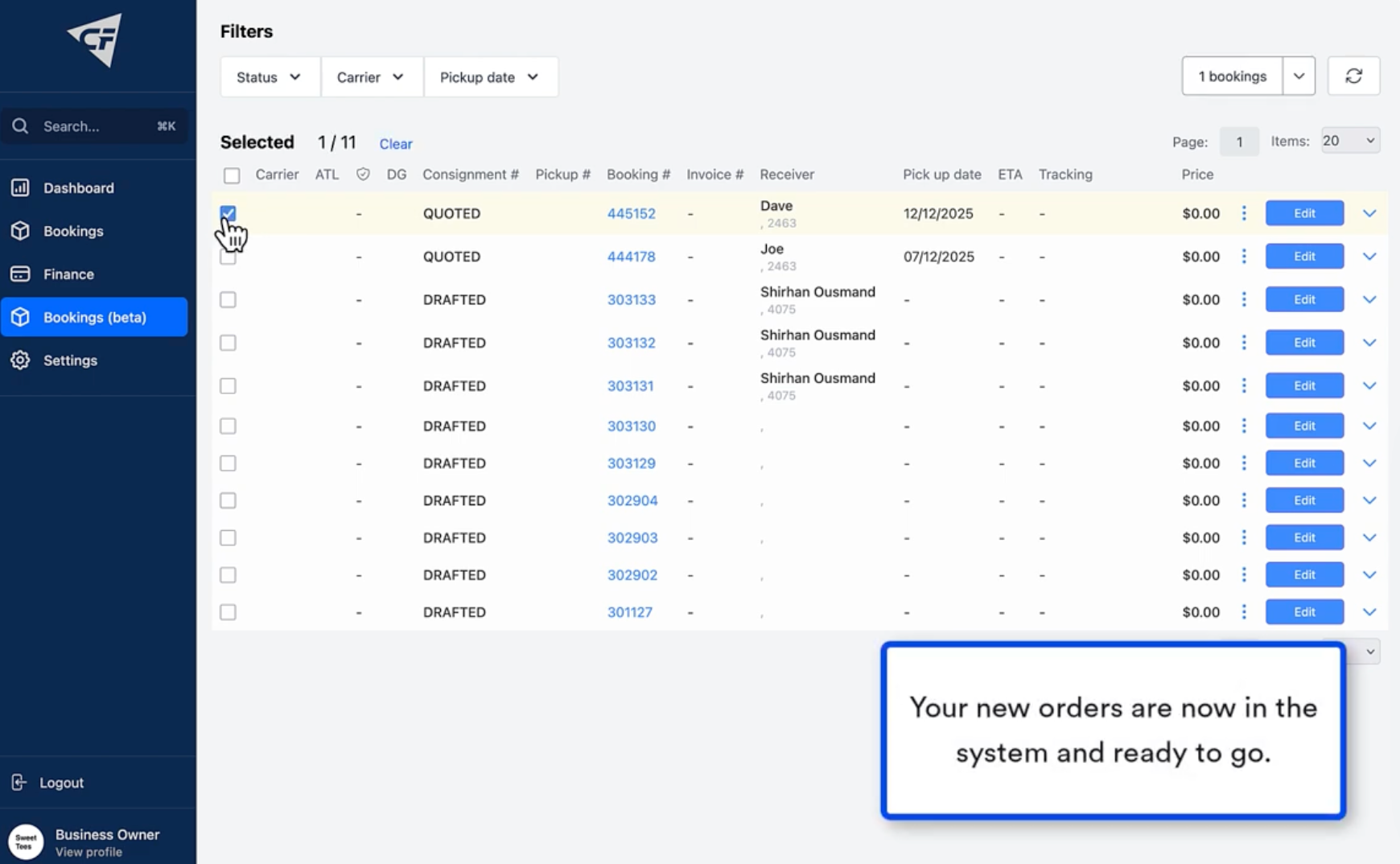
Couriers & Freight’s WooCommerce plugin connects your store to multiple Australian carriers and retrieves live shipping rates at checkout based on weight, dimensions, and destination. Customers select from available carrier options during checkout. Store owners manage bookings, labels, and tracking within the WooCommerce dashboard.
To get started, install Couriers & Freight’s WooCommerce plugin directly from the plugin page.
Install the Couriers & Freight WooCommerce plugin to display real-time carrier rates at checkout and book shipments directly from your dashboard.
Get a Quote Now


MHP

No Surcharge*

$16.50
$14
$15.50
$0
$15.50
$14.75
$0
$0
$0
$0
MHP Large Item
No Surcharge*
$16.50
$75
$62
$62
$60.10
$14.75
$0
$0
$0
$0
Residential Pickup
No Surcharge*
$6
$0
$9
--
$9
$10.60
$0
$0
$0
$38.50
Reidential pick up 30-99kgs
No Surcharge*
$63
$0
$9
$0
$9
$74.15
$20
Won't carry
Won't carry
$38.50
Residential pick up 100kgs+
No Surcharge*
$198
$0
$9
$0
$9
$158.87
$50
Won't carry
Won't carry
$38.50
Residential Delivery up to 29kgs
No Surcharge*
$6
$0
$9
--
$9.00
$10.60
$0
$0
$0
$38.50
Residential Delivery up 30-99kgs
No Surcharge*
$63
$0
$9
$0
$9
$74.15
$20
Won't carry
Won't carry
$38.50
Residential Delivery 100kgs+
No Surcharge*
$198
$0
$9
--
$9
$158.57
$50
Won't carry
Won't carry
$38.50
Tail Lift Pick up 50-99kgs Sydney / Melbourne
No Surcharge*
$45
$50-$250
$88
$88
$88
$44.07
$120
Won't carry
Won't carry
$61.50
Tail Lift Pick up 100-299kgs Sydney / Melbourne
No Surcharge*
$85
$50-$250
$88
$88
$88
$44.07
$120
Won't carry
Won't carry
$61.50
Tail Lift Pick up 300-499kgs Sydney / Melbourne
No Surcharge*
$120
$50-$250
$88
$88
$88
$44.07
$120
Won't carry
Won't carry
$61.50
Tail Lift Pick up 500kgs + Sydney / Melbourne
No Surcharge*
$250
$50-$250
$88
$88
$88
$44.07
$120
Won't carry
Won't carry
$61.50
Tail Lift Delivery 50-99kgs Sydney / Melbourne
No Surcharge*
$45
$50-$250
$88
$88
$88
$44.07
$120
Won't carry
Won't carry
$61.50
Tail Lift Delivery 100-299kgs Sydney / Melbourne
No Surcharge*
$85
$50-$250
$88
$88
$88
$44.07
$120
Won't carry
Won't carry
$61.50
Tail Lift Delivery300-499kgs Sydney / Melbourne
No Surcharge*
$120
$50-$250
$88
$88
$88
$44.07
$120
Won't carry
Won't carry
$61.50
Tail Lift Delivery 500kgs + Sydney / Melbourne
No Surcharge*
$250
$50-$250
$88
$88
$88
$44.07
$120
Won't carry
Won't carry
$61.50
Dead weight over 32KGS carton freight
No Surcharge*
$16.50
$75
$70
$70
$70
$14.75
$0
Won't carry
Won't carry
$0
Oversize Surcharge 1.20 - 1.54
No Surcharge*
--
$0
$0
$0
$0
$5.40
$10
$15
Won't carry
$0
Oversize Surcharge 1.55 - 1.85
No Surcharge*
$17
$20
$0
$0
$0
$11.93
$10
$15
Won't carry
$0
Oversize Surcharge 1.86 - 2.20
No Surcharge*
$37
$40
$0
$0
$0
$11.93
$10
Won't carry
Won't carry
$0
Pallet Surcharge
No Surcharge*
--
$0
$0
$0
$0
$0
$0
Won't carry
Won't carry
$0
Hand Unload Fee Carton
No Surcharge*
--
$0
$70
$70
$70
$47
$0
Won't carry
Won't carry
$61.50
Western Australia Regional Surcharge
No Surcharge*
%10
$0
$0
$0
$0
$0
$0
$0
$0
$0
*Surcharges may apply to areas/deimensions not listed
**Prices correct of 16th September 2024

Click to start shipping in less than 60 seconds